7 Common Excel Data Problems Businesses Should Detect Before Analysis
Duplicate records, missing values, inconsistent formats, and invalid fields can make an Excel report misleading. Learn seven common data-quality problems to detect before analysis and how to prepare cleaner business data.
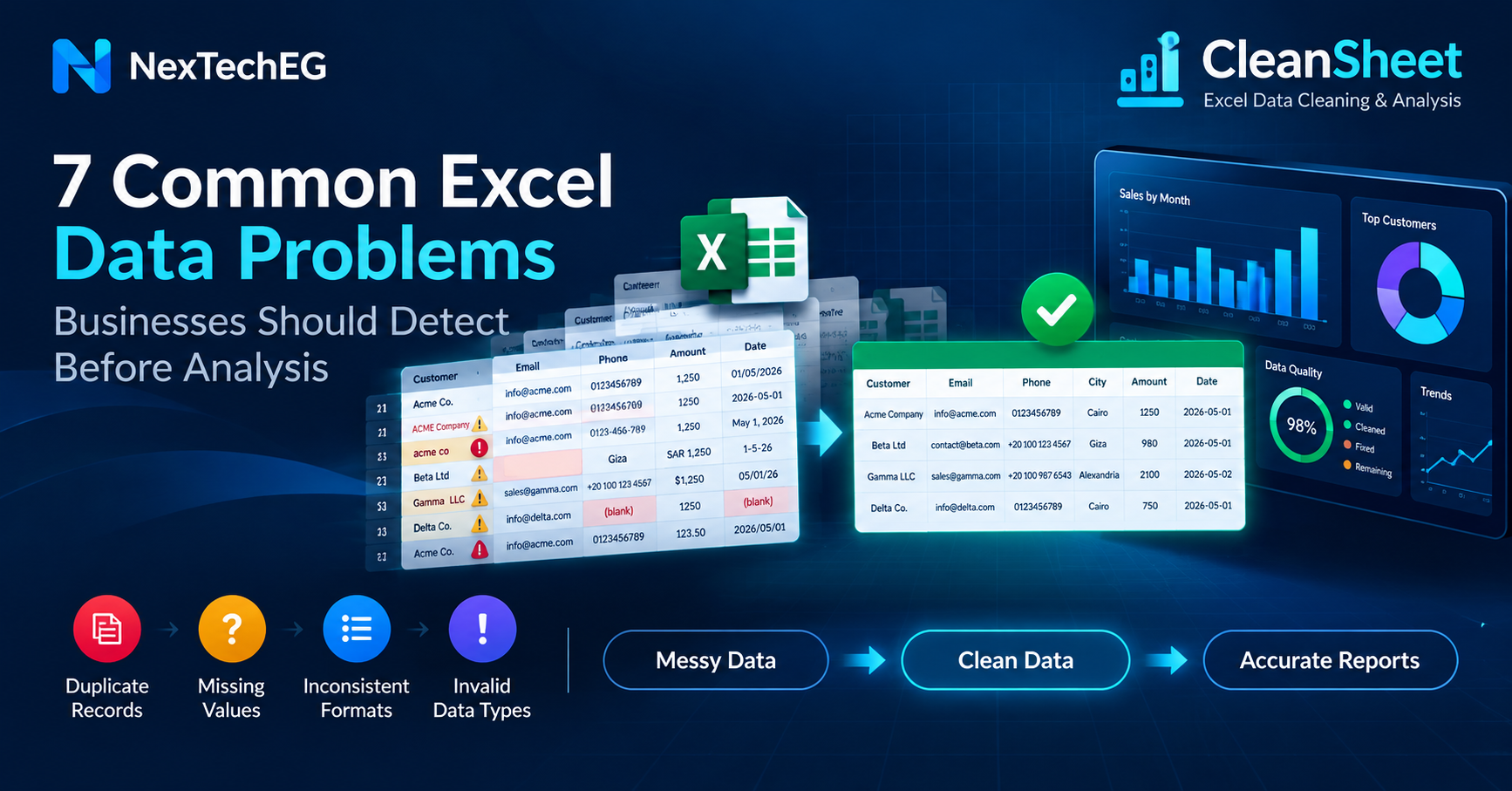
Common Excel data problems include duplicate records, missing values, inconsistent date and number formats, invalid data types, spelling variations, and incomplete or invalid records. If these issues are not detected before analysis, totals, comparisons, customer counts, trends, and dashboards can produce misleading results.
Excel is widely used for customer databases, sales reports, inventory lists, supplier records, CRM exports, and e-commerce orders. It is flexible and familiar, but that flexibility also allows the same value to be entered in several ways. A workbook can look correct while containing structural problems that only become visible when someone filters, joins, calculates, or imports the data into a reporting tool.
Why Excel Data Quality Matters Before Analysis
Analysis assumes that each row and column has a reliable meaning. A customer identifier should identify one customer, a date should be interpreted consistently, an amount should be numeric, and a category should use an agreed value. When those assumptions are false, a technically correct formula can still return the wrong business answer.
Data cleaning is therefore not cosmetic editing. It is the process of examining the dataset, defining valid rules, detecting exceptions, and correcting or flagging records before the information is used. The objective is not to make every spreadsheet look identical. It is to make the values sufficiently accurate, consistent, complete, and structured for their intended use. For a broader introduction, read what data cleaning is and why businesses need it before analysis.
1. Duplicate Records
A duplicate is more than two completely identical rows. It can also be two records that describe the same customer, supplier, order, or product with small differences. Duplicate records often appear when teams combine monthly files, export the same CRM range twice, copy rows between sheets, or create a new contact because an existing record was difficult to find.
For example, “Acme Co.”, “ACME Company”, and “acme co” may represent one organization. An exact-match check will treat them as different, but a normalized comparison may identify them as a possible duplicate. After review, the approved value could be:
Before: Acme Co. / ACME Company / acme co
After normalization: Acme Company
Duplicates can inflate customer counts, revenue totals, stock movements, campaign audiences, and supplier exposure. Removing them without rules can also delete legitimate repeated transactions. A sound process first defines the business key—such as order number, customer ID, or a combination of fields—then separates exact duplicates from probable matches that require review.
2. Missing Values
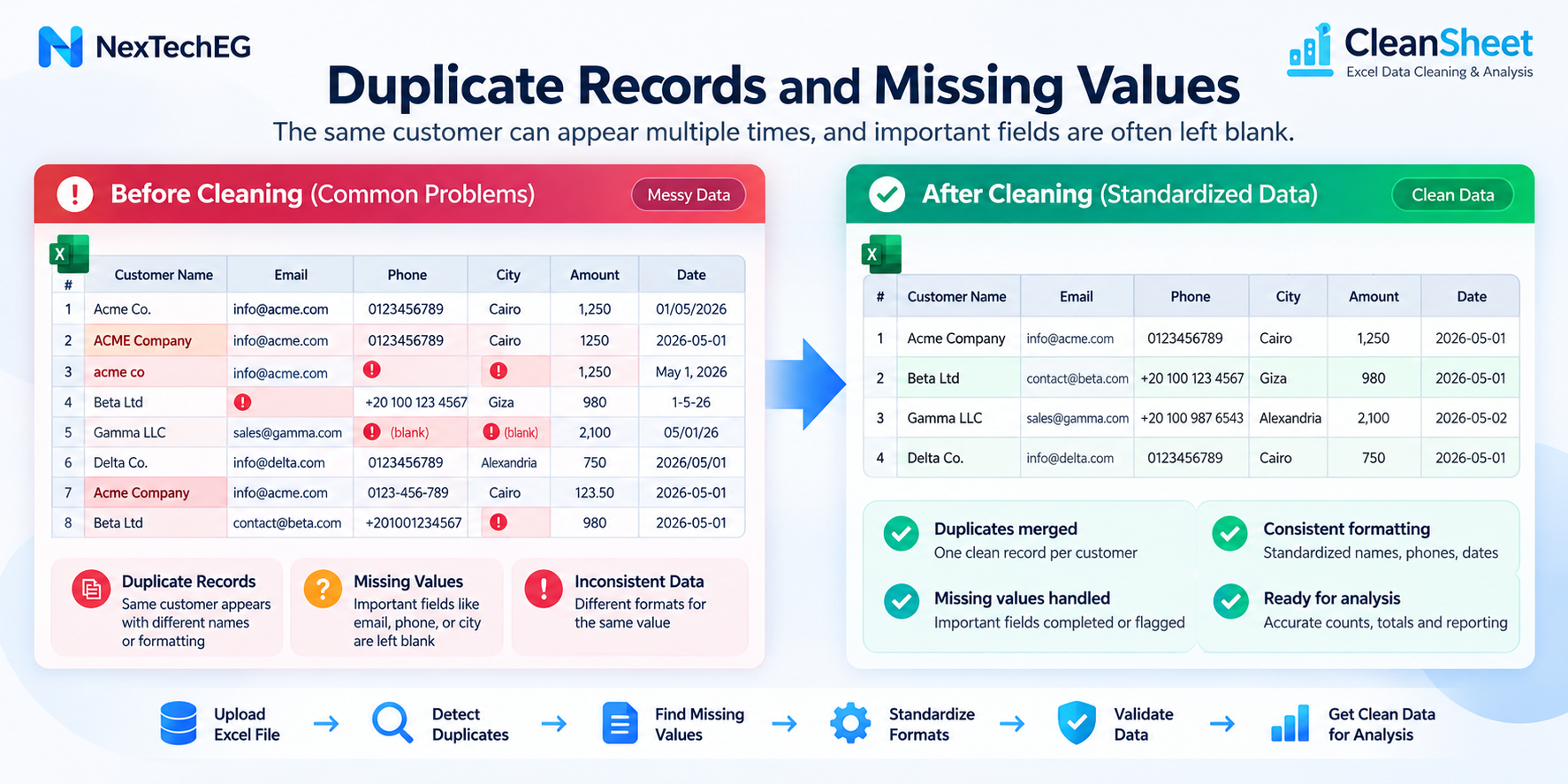
Missing values are blank or unavailable fields needed for a business process or analysis. Examples include an empty customer country, a product without a category, an order without a transaction date, a supplier without a tax identifier, or an invoice line without a quantity.
The impact depends on the field. A missing optional note may be harmless, while a missing amount can invalidate a financial total. Blank customer regions can cause records to disappear from regional reporting. Missing product costs can produce incomplete margin calculations. An empty status may leave the analyst unable to distinguish open orders from completed ones.
Do not automatically replace every blank with zero. Zero, unknown, not applicable, and not yet collected are different meanings. Start by profiling completeness per column, identify mandatory fields, and agree how each missing condition should be represented. Where a value cannot be recovered safely, flag it for review instead of inventing one.
3. Inconsistent Date Formats
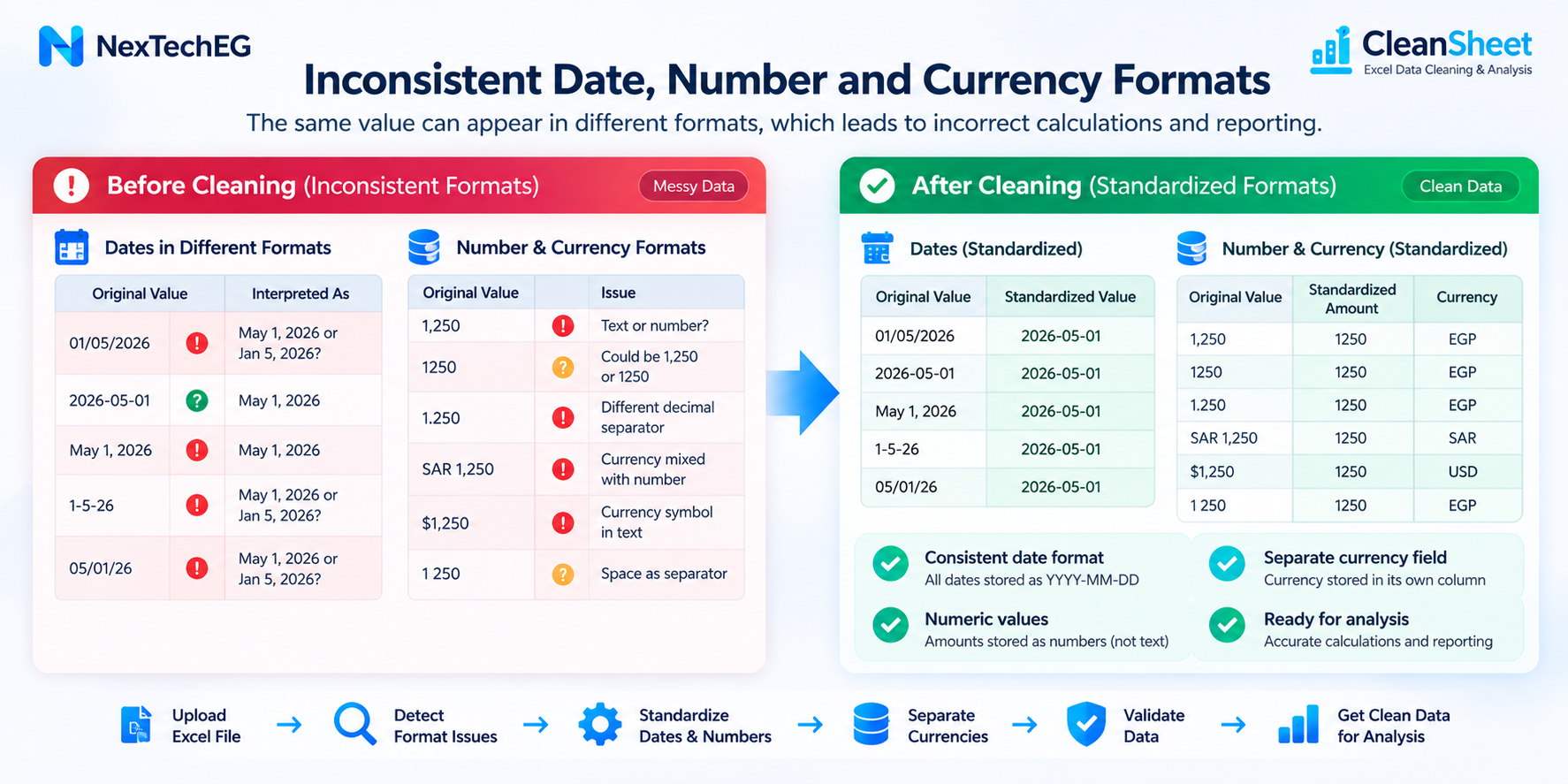
A workbook may contain dates such as 01/05/2026, 2026-05-01, and May 1, 2026. The first example is ambiguous: depending on regional settings, it may mean 1 May or 5 January. Some cells may be real Excel dates while others are text that only looks like a date.
Inconsistent interpretation can move transactions into the wrong month, distort ageing reports, break chronological sorting, and make date filters omit valid rows. The risk becomes greater when files move between teams or systems configured for different locales.
A reliable workflow identifies the source convention, parses dates using an explicit rule, flags impossible or ambiguous values, and stores the normalized result consistently. For example:
Before: 01/02/26 and 2026-02-01
Normalized: 2026-02-01
The original value may be retained for audit or review, especially when its intended meaning cannot be proven from context.
4. Inconsistent Number and Currency Formats
The values 1,250, 1250, 1.250, SAR 1,250, and $1,250 cannot be interpreted reliably without knowing the decimal convention and currency. A comma may be a thousands separator in one source and a decimal separator in another. Currency symbols may be missing, embedded in text, or mixed within one column.
These differences can cause amounts to be imported as text, sorted alphabetically, excluded from totals, or converted incorrectly. Combining EGP, SAR, and USD into one unlabeled total is also misleading even if every value is numeric.
Separate the numeric amount from the currency, define the permitted decimal and thousands conventions, and validate scale and sign. Keep currencies distinct unless an approved exchange-rate process is part of the analysis. Negative numbers, parentheses, percentage signs, and spaces also need explicit handling rather than broad search-and-replace.
5. Inconsistent Text and Naming
Text differences fragment records that should belong together. Capitalization, spaces, punctuation, abbreviations, Arabic and English naming, and typing errors can create separate groups for the same entity. “NexTechEG”, “NexTech EG”, and “nextecheg” are simple examples. Similar issues appear in city, product, department, supplier, and sales-channel fields.
Fragmentation affects grouping and joining. A sales report may show three rows for one customer; a lookup may fail to attach a supplier category; a CRM export may not match the invoicing list. Blindly converting everything to uppercase is insufficient because it does not resolve abbreviations, misspellings, or business-approved names.
Useful standardization trims unintended spaces, normalizes case for comparison, applies approved reference lists, and preserves the preferred display name. High-risk fuzzy matches should be suggested for human review. The rule should be reusable so next month’s file does not require the same manual corrections.
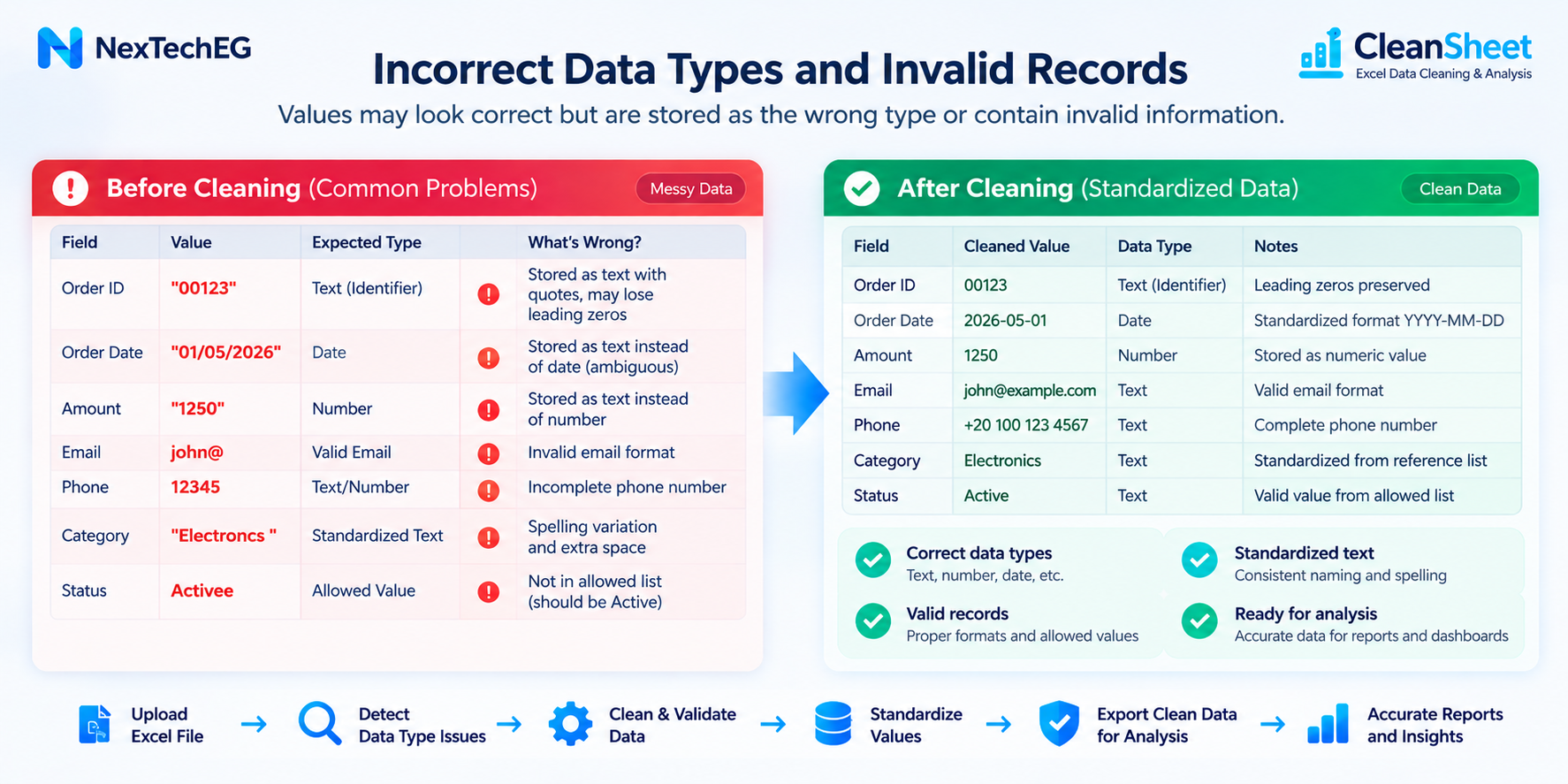
6. Incorrect Data Types
A column can contain values that look right on screen but use the wrong underlying type. Numbers stored as text may not aggregate. Dates stored as text may not sort chronologically. Leading zeros can disappear when a product code or telephone number is treated as a number. Mixed values in one column can force an import tool to guess incorrectly.
Identifiers deserve special care. Customer IDs, invoice numbers, postal codes, and SKU codes may contain only digits, but arithmetic has no meaning for them. Storing them as numeric values can remove leading zeros or convert long codes into scientific notation.
Before analysis, define the expected type for every important column and validate each value against it. Convert only when the conversion is unambiguous, record failed conversions, and distinguish measures from identifiers. This makes calculations predictable and prevents silent data loss during export or import.
7. Incomplete or Invalid Records
A record may be present but unusable because required fields are incomplete or values violate business rules. Examples include an email without a valid structure, a missing phone number needed for follow-up, a category outside the approved list, a negative quantity where returns are stored separately, or an order marked complete without a completion date.
Validation checks whether a value conforms to the agreed rule; it does not guarantee that the real-world fact is true. A correctly formatted email can still belong to the wrong person. For that reason, validation should combine format checks, allowed-value lists, range checks, cross-field rules, and review of exceptions.
Prioritize rules according to business use. A marketing contact file, inventory reconciliation, and management sales report will not have identical requirements. Document the reason for each rule, how exceptions are handled, and who can approve a correction.
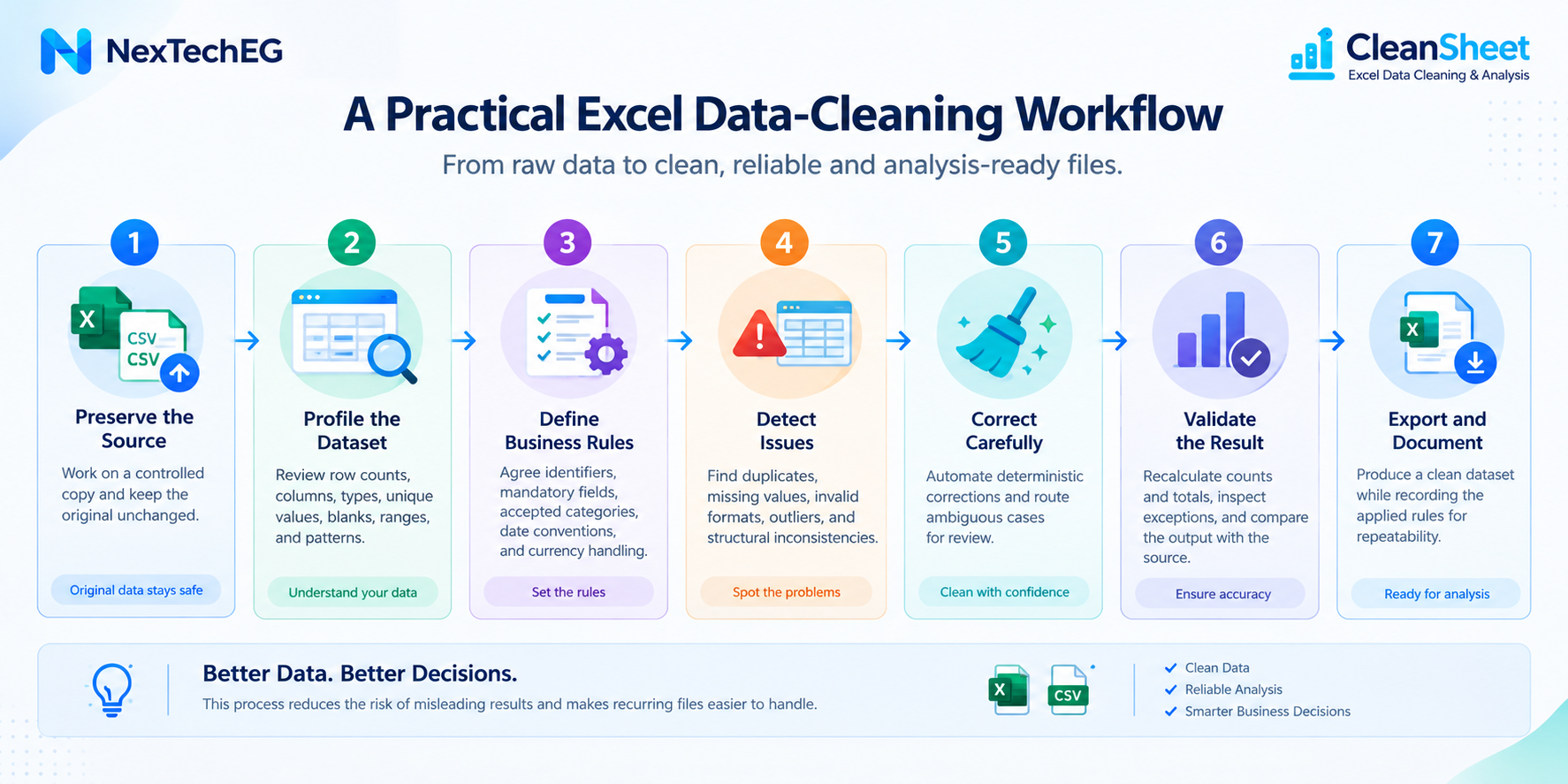
A Practical Excel Data-Cleaning Workflow
- Preserve the source. Work on a controlled copy and keep the original unchanged.
- Profile the dataset. Review row counts, columns, types, unique values, blanks, ranges, and patterns.
- Define business rules. Agree identifiers, mandatory fields, accepted categories, date conventions, and currency handling.
- Detect issues. Find exact and probable duplicates, missing values, invalid formats, outliers, and structural inconsistencies.
- Correct carefully. Automate deterministic corrections and route ambiguous cases for review.
- Validate the result. Recalculate counts and totals, inspect exceptions, and compare the output with the source.
- Export and document. Produce a clean dataset while recording the applied rules for repeatability.
This approach reduces the risk of a visually tidy workbook hiding incorrect assumptions. It also makes recurring monthly or departmental files easier to process consistently.
Why Clean Excel Data Before Power BI?
Power BI and other data analysis and reporting tools depend on the quality and structure of their source data. Cleaning data before import can reduce duplicate records, inconsistent categories, failed relationships, type-conversion errors, and formatting issues that would otherwise affect dashboards and calculations.
Transformation can also be performed within reporting workflows, but the same rules still need to be defined and tested. Cleaning at an appropriate reusable stage helps different reports rely on consistent categories and identifiers. It does not guarantee a correct dashboard; measures, relationships, permissions, and business definitions must also be reviewed.
When a Repeatable Cleaning Process Helps
Businesses that regularly work with large Excel or CSV files may benefit from a repeatable data-cleaning workflow instead of manually correcting the same problems in every file. CleanSheet supports dataset profiling, duplicate detection, missing-value analysis, data standardization, statistical analysis, charts, reports, clean-data export, clustering, and automated insights.
CleanSheet can be deployed inside a customer-controlled environment according to the current deployment model. The appropriate deployment, access controls, and review process should be agreed for each organization and its data requirements.
Frequently Asked Questions
What are the most common data problems in Excel?
Common problems include duplicates, missing values, inconsistent dates and numbers, naming variations, incorrect data types, and incomplete or invalid records.
How do duplicate records affect business reports?
They can inflate counts and totals, fragment customer histories, and cause the same transaction or entity to be represented more than once.
Why are missing values a problem?
Missing required values can exclude records from groups, weaken calculations, prevent matching, or make a process impossible to complete. Their impact depends on the field and business use.
Should Excel data be cleaned before Power BI?
Yes. Source data should be profiled and validated before reporting. Clean, consistently typed data reduces avoidable errors, although the Power BI model and calculations still require validation.
Can Excel data cleaning be automated?
Many repeatable checks and deterministic corrections can be automated. Ambiguous matches, missing facts, and high-impact exceptions should remain visible for appropriate review.
Working with Large Excel or CSV Datasets?
Explore CleanSheet to see how your business data can be cleaned, analyzed, and prepared for reporting.
Explore CleanSheet or use the existing demo form to Request a Demo.